
Build errors
Fix MSB8041 in Visual Studio 2026: MFC Libraries Required
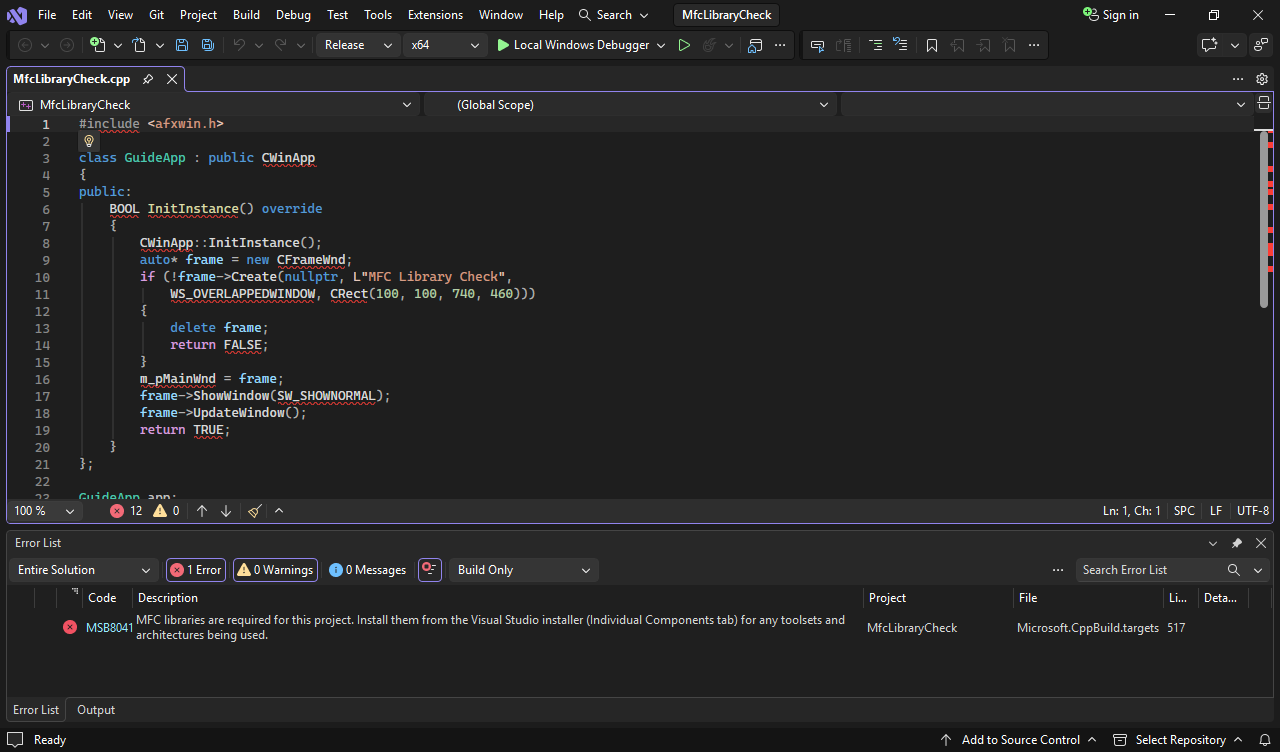
You open an MFC project in Visual Studio 2026, build it, and get this before a single file compiles:
error MSB8041: MFC libraries are required for this project. Install them from the Visual Studio installer (Individual Components tab) for any toolsets and architectures being used.Nothing is wrong with your code. MFC is not part of a default Visual Studio 2026 install, and the copy of MFC that your project needs is not on this machine. Install the right MFC component and the error goes away.
Why it happens
In the Desktop development with C++ workload, MFC is an optional component. It is not checked by default (ATL is recommended; MFC is not). So a fresh install, a new PC or a Build Tools image usually has no MFC at all.
MSBuild checks for MFC before compiling. When the project uses MFC (Use of MFC is Use MFC in a Static Library or Use MFC in a Shared DLL), it looks for one file:
VC\Tools\MSVC\<version>\atlmfc\lib\<platform>\mfcs140.lib<version> is the MSVC toolset the project builds with, and <platform> is the target architecture (x86, x64, arm64). If that file is missing, you get MSB8041. This is why the message says “for any toolsets and architectures being used”: MFC is installed per toolset and per architecture. Having MFC for one toolset does not help a project that builds with another.
Fix: install MFC from the Visual Studio Installer
- Open Visual Studio Installer (Start menu, or in Visual Studio: Tools > Get Tools and Features…).
- Next to Visual Studio 2026, click Modify.
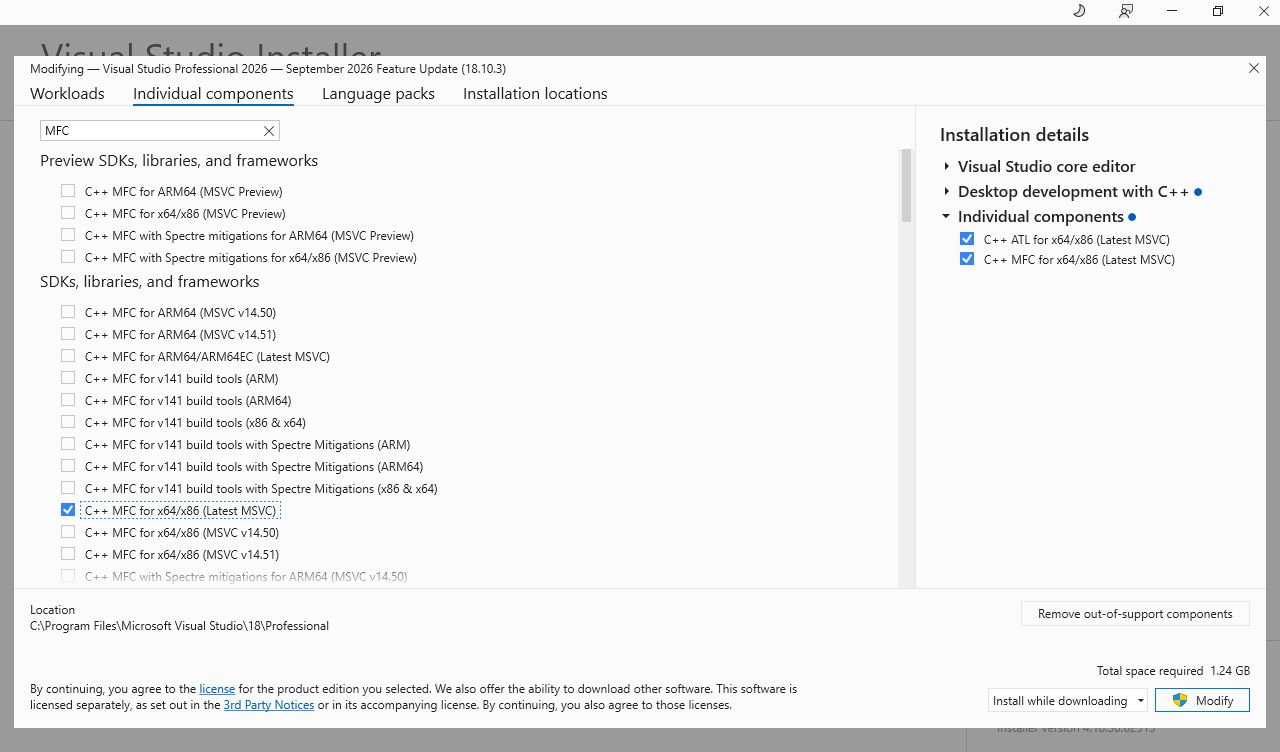
- Open the Individual components tab and type
MFCin the search box. - Check the component that matches your project (see the table below). For a project on the default toolset that targets x86 or x64, this is C++ MFC for x64/x86 (Latest MSVC).
- Click Modify. When it finishes, restart Visual Studio and rebuild.
After installing the component, rebuilding the same project succeeds:
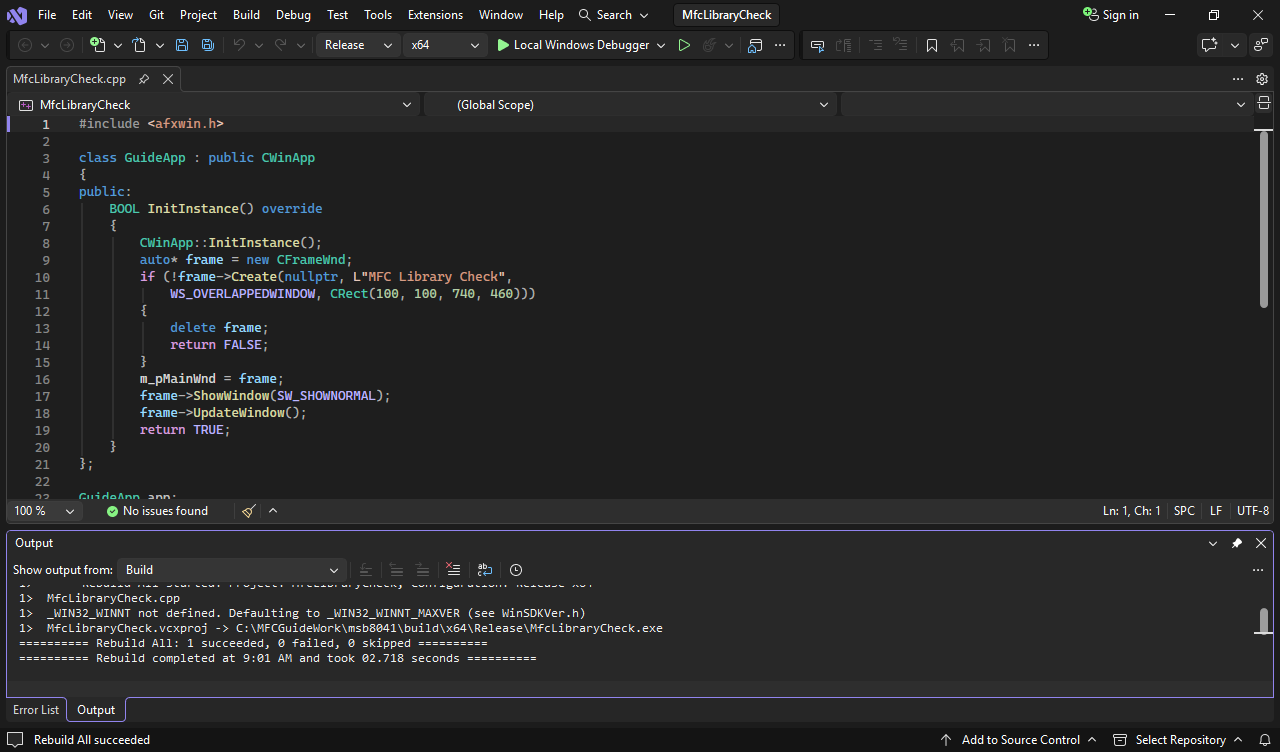
These screenshots were captured on an English Windows 11 VM with Visual Studio 2026 Professional 18.10.3 and MSVC 14.51.36231 on October 13, 2026. The same minimal MFC application was rebuilt in Release/x64 before removing MFC, after removing it, and after reinstalling it. The results were success, MSB8041, and success; the rebuilt application also ran successfully.
Pick the component that matches your project
Two project settings decide which component you need:
- Configuration Properties > General > Platform Toolset
- The platform you build for (Win32/x64/ARM64), in the toolbar
| Your project builds with | Install |
|---|---|
| v145, the Visual Studio 2026 default, x86/x64 | C++ MFC for x64/x86 (Latest MSVC) |
| v145 pinned to a specific MSVC version, e.g. 14.50 | C++ MFC for x64/x86 (MSVC v14.50) |
| v143 (Visual Studio 2022 toolset) | C++ v14.44 (17.14) MFC for v143 build tools (x86 & x64) |
| v141 (Visual Studio 2017 toolset) | C++ MFC for v141 build tools (x86 & x64) |
| ARM64 | The same component with ARM64 in its name, e.g. C++ MFC for ARM64/ARM64EC (Latest MSVC) |
The component names are exactly as the Visual Studio 2026 installer shows them. For an older toolset, the build tools themselves (e.g. MSVC v141 - VS 2017 C++ x64/x86 build tools (v14.16)) have to be installed too; the MFC component only adds the libraries.
Spectre mitigation: MSB8042 instead of MSB8041
If the project has Spectre Mitigation enabled (C/C++ > Code Generation), MSBuild looks for the Spectre-mitigated MFC libraries instead, and the error changes to:
error MSB8042: MFC libraries with Spectre Mitigations are required for this project. Install them from the Visual Studio installer (Individual components tab) for any toolsets and architectures being used. Learn more: https://aka.ms/Ofhn4cInstall the matching component with Spectre mitigations in its name, e.g. C++ MFC with Spectre mitigations for x64/x86 (Latest MSVC).
“ATL libraries are required”
The same check exists for ATL. If the message says ATL libraries are required, install the matching C++ ATL component instead.
Install from the command line
On a build server, or to script a new machine, add the component by its ID. Run this from an elevated command prompt, with the path of your Visual Studio 2026 edition:
"C:\Program Files (x86)\Microsoft Visual Studio\Installer\setup.exe" modify ^
  --installPath "C:\Program Files\Microsoft Visual Studio\18\Community" ^
  --add Microsoft.VisualStudio.Component.VC.ATLMFC ^
  --passive
Component IDs for the table above:
| Component | ID |
|---|---|
| C++ MFC for x64/x86 (Latest MSVC) | Microsoft.VisualStudio.Component.VC.ATLMFC |
| C++ MFC for ARM64/ARM64EC (Latest MSVC) | Microsoft.VisualStudio.Component.VC.MFC.ARM64 |
| C++ MFC with Spectre mitigations for x64/x86 (Latest MSVC) | Microsoft.VisualStudio.Component.VC.ATLMFC.Spectre |
| C++ v14.44 (17.14) MFC for v143 build tools (x86 & x64) | Microsoft.VisualStudio.Component.VC.14.44.17.14.MFC |
| C++ MFC for v141 build tools (x86 & x64) | Microsoft.VisualStudio.Component.VC.v141.MFC |
For a team, put the IDs in a .vsconfig file next to the solution. When someone opens the solution without the components, Visual Studio offers to install them, so the next person never sees MSB8041:
{
  "version": "1.0",
  "components": [
    "Microsoft.VisualStudio.Workload.NativeDesktop",
    "Microsoft.VisualStudio.Component.VC.ATLMFC"
  ]
}
Still getting MSB8041?
Check that the file MSBuild looks for now exists, under your Visual Studio folder:
C:\Program Files\Microsoft Visual Studio\18\<Edition>\VC\Tools\MSVC\<version>\atlmfc\lib\x64\mfcs140.lib- The
atlmfcfolder exists for a different<version>than the one the project uses. You installed MFC for another toolset. Compare the folder name with the project’s Platform Toolset (and with any MSVC version pinned in the project) and install the matching component. x64is there butarm64is not (or the other way round). Install the component for the architecture you build.- The project does not actually use MFC. If it is a plain Win32 project that only has the setting left over, set Configuration Properties > Advanced > Use of MFC to Use Standard Windows Libraries. Only do this if the code includes no MFC headers (
afxwin.hand friends).
Summary
- MSB8041 means “this machine has no MFC for the toolset and architecture this project uses”. It is not a code error.
- MFC is optional in the Desktop development with C++ workload, so new installs usually lack it.
- Install the MFC component that matches the project’s Platform Toolset, architecture and Spectre setting. Use the component ID and a
.vsconfigfile to keep build machines and teammates in step.